> For the complete documentation index, see [llms.txt](https://docs.thunkable.com/llms.txt). Markdown versions of documentation pages are available by appending `.md` to page URLs; this page is available as [Markdown](https://docs.thunkable.com/snap-to-place/generate-screenshots.md).
# Generate Screenshots
By adding app screenshots that showcase your app's features and functionality on its store listing page, you can help your app attract new users on the Apple App Store and Google Play Store. They are a requirement of the publishing process.
To generate app screenshots, the instructions vary depending on whether you are able to create a responsive web app or not.
## Using a responsive web app
To generate screenshots using a responsive web app:
1. Publish your app as a responsive web app. See instructions here: [Responsive Web App](/snap-to-place/publish-as-a-web-app-pro.md#responsive-web-app)
2. Copy the Web App URL link.
3. Open the link in Google Chrome.
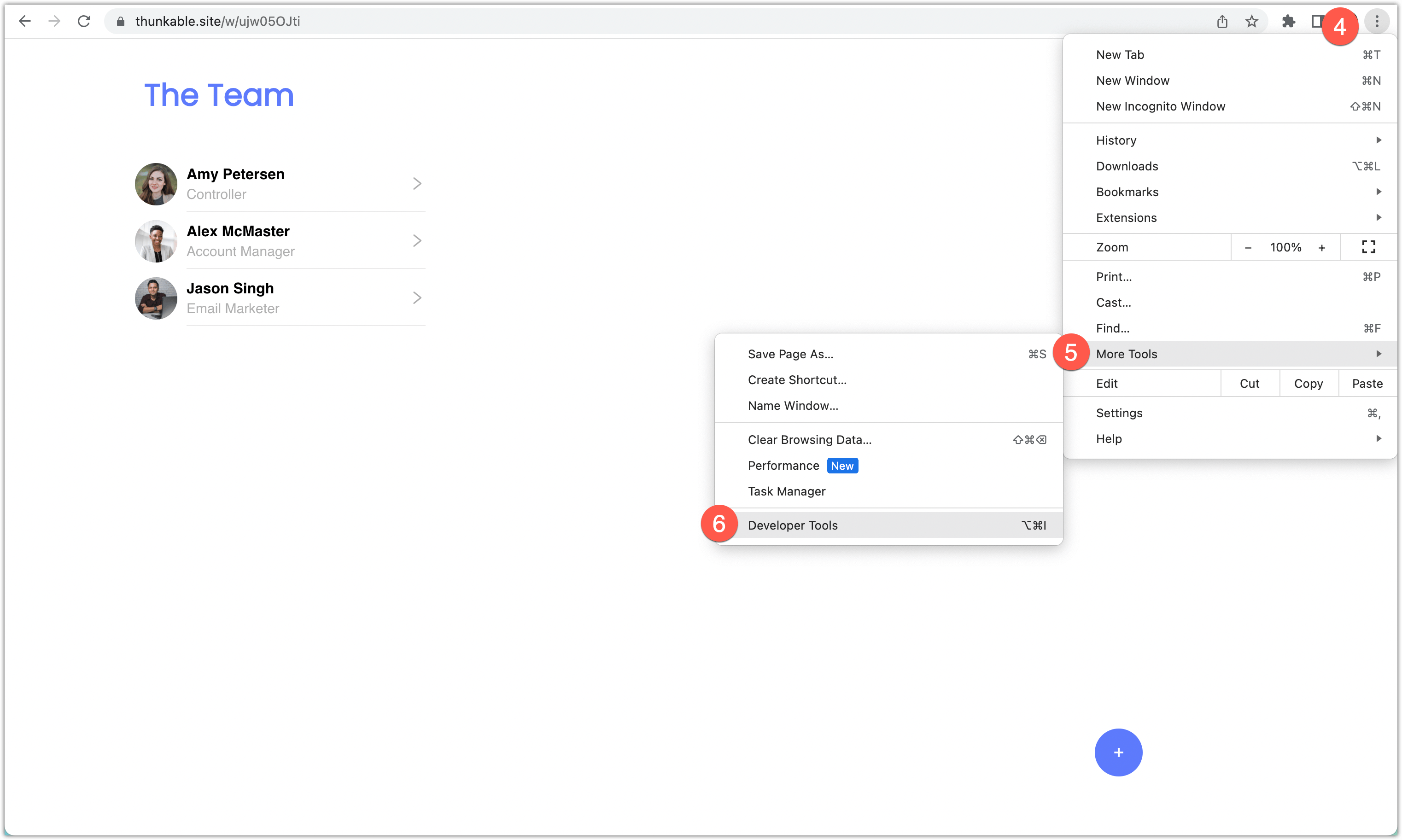
4. Click the **vertical ellipsis** in the upper right of your Chrome browser to access Chrome Settings.
5. Click **More Tools**.
6. Click **Developer Tools** to view the app in developer mode**.**
7. In the top left-hand corner of the developer tools, click the icon that looks like a laptop and a phone.
8. Use the drop-down menu at the top of the screen to select different devices and screen orientations.
{% hint style="warning" %}
Refresh your screen each time you select a new device to ensure the selection is applied to your responsive web app.
{% endhint %}
9. If the device you need isn't listed, click **Edit...** at the bottom of the selection list and add additional devices as necessary.
10. Alternatively, if you know the device dimensions, select **Responsive** from the device menu and enter the dimensions manually.
11. To generate the screenshot, click the **vertical ellipsis** to the left of the developer's tools console.
12. Click **Capture screenshot**.
13. Repeat for required devices.
{% hint style="info" %}
We recommend that you create a folder on your computer to save and organize all of the assets you will require for publishing your app.
{% endhint %}
## Using a mobile web app
1. Publish your app as a [mobile web app](/snap-to-place/publish-as-a-web-app-pro.md).
2. Capture a screenshot of your mobile web app. You don't need to worry about the grey border.
3. Use a design tool such as [AppMockUp](https://app-mockup.com/) to create all the required screenshots.
## **Required screenshot sizes for App Store**
[Here](https://help.apple.com/app-store-connect/#/devd274dd925) is a list of screenshot sizes you need to publish to the App Store.
To get all of the screenshot sizes you need, create screenshots using the following device settings. Each device name will be followed by its corresponding screen size in the screenshot doc linked above.
iPhone X (5.8 inch screenshots)
iPhone 6/7/8 Plus (5.5 inch screenshots)
iPad Pro (12.9 inch screenshots - suitable for iPad Pro 3rd gen and iPad Pro 2nd gen screenshots described in doc)
{% hint style="info" %}
5.8 inch screenshots are used as an alternative to 6.5 inch screenshots. There are two ways to upload these iPhone X screenshots to your App Store listing:
{% endhint %}
#### Upload 5.8 inch screenshots in Media Manager
When you look at your screenshot upload window, you will see the text ‘View All Sizes in Media Manager’. Click here. In the iOS tab, you will see a segment that says ‘6.5-inch display’. At the bottom of this segment you will see the text ‘5.8-inch display’. Next to this you will see a checkbox with the text ‘Use 6.5-inch Display’. Uncheck this box and expand the ‘5.8-inch Display’ segment. Click on ‘Choose File’, and upload your 5.8-inch screenshots.
#### Resize 5.8 inch screenshots to 6.5 inch screenshots
Use an image editor of your choice to resize your iPhone X screenshots from 1125 x 2436 pixels (5.8-inch Display) to 1242 x 2688 pixels (6.5-inch Display). Upload your new 6.5-inch screenshots to the App Store.

.webp?alt=media&token=ed3362f7-c440-4d62-b587-d005fb509997)

